0 €0.00
products in your basketto quote Checkout
Ooops no items were found.
Try something else.
Ok
Loading…
Search & Filter

KVM Switches

A KVM switch (keyboard, video and mouse switch) allows you to connect multiple computers to one keyboard, mouse and display. You can switch between the various computers using a simple keystroke and without touching a single wire. KVM’s are effective in enhancing efficiency, streamlining work and learning spaces, and promoting collaboration. Easily manage and monitor multiple computers while saving space with KVM switches. Complete your entire tech set-up with computers from leading brands.
72 products found
Sort by
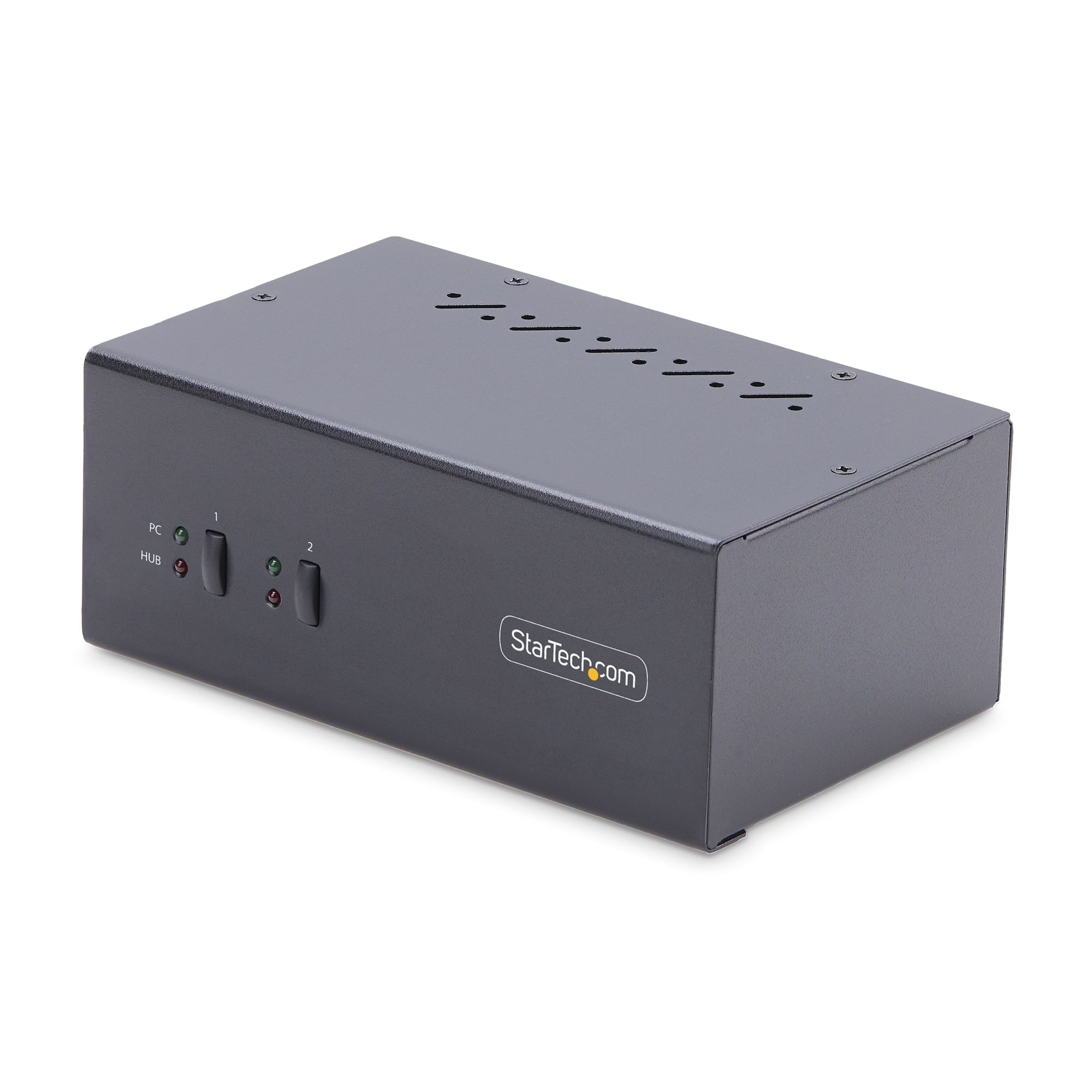
StarTech.com 2-Port Dual-Monitor DisplayPort KVM Switch, 4K 60Hz, 2x USB 5Gbps Hub Ports, 2x USB 2.0 HID Ports, Hotkey and Push-Button Switching, TAA Compliant - ESD Level 3 Protection
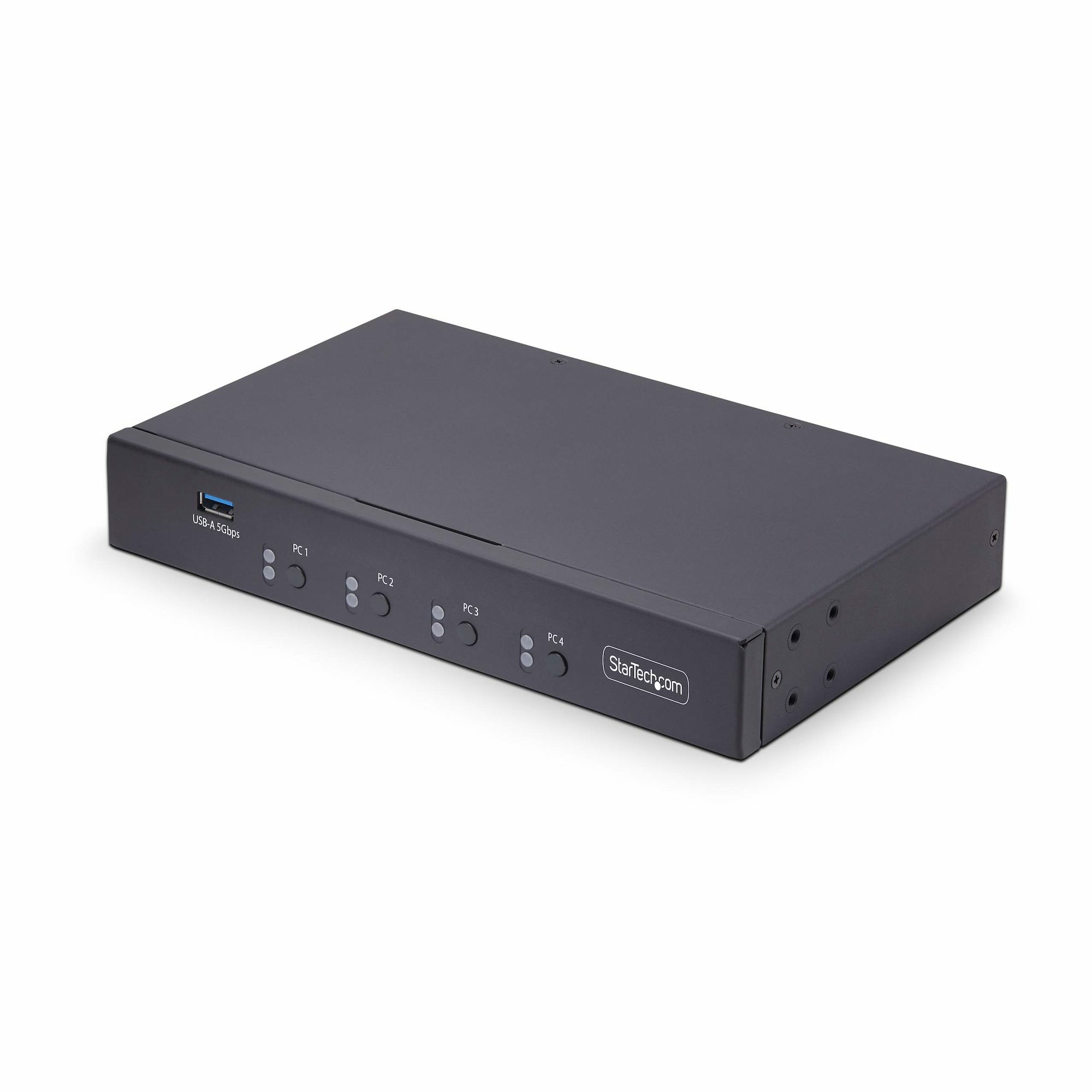
StarTech.com 4-Port KM Switch with Mouse Roaming, USB Switch for Keyboard/Mouse, 3.5mm/USB Audio, Perihperal Sharing for 4 Computers, TAA Compliant
StarTech.com 4-Port DisplayPort KVM Switch, Single 4K 60Hz Monitor, 6x USB Ports, Push-Button & Hotkey Switching, DisplayPort 1.2, OS Independent, TAA Compliant
StarTech.com 4-Port Dual-Monitor DisplayPort KVM Switch, 4K 60Hz, 2x USB 5Gbps Hub Ports, 2x USB 2.0 HID Ports, Hotkey and Push-Button Switching, TAA Compliant - 3.5mm Audio, HDCP
StarTech.com 8-Port DisplayPort KVM Switch with 1U Rack Mount Kit, 4K 60Hz DP 1.2, Push-Button & Hotkey Switching, 4-Port USB Hub, OS Independent, TAA Compliant
StarTech.com 8-Port HDMI KVM Switch with 1U Rack Mount Kit, 4K 60Hz HDMI 2.0, Push-Button & Hotkey Switching, 4-Port USB Hub, OS Independent, TAA Compliant
Vertiv CYBEX SC UNIVERSAL DP/H SECURE
Vertiv SC940DPH-400 KVM switch Black
StarTech.com 16 Port 1U Rackmount USB KVM Switch Kit with OSD and Cables
StarTech.com 2 Port DisplayPort KVM Switch - 4K 60Hz - Compact Dual Port UHD DP 1.2 USB Desktop KVM Switch with 4ft Cables & Audio - Bus Powered & Remote Switching - MacBook ThinkPad
StarTech.com 2 Port USB HDMI Cable KVM Switch with Audio and Remote Switch – USB Powered
StarTech.com 2-Port HDMI KVM Switch with Built-In Cables - USB 4K 60Hz
Loading more
Total 72 products

How do you use a KVM switch?

To use a KVW switch, begin by connecting your keyboard, mouse and monitor to the switch’s ports. Then, connect all computers to the switch using the cables provided. To switch control between computers, press the designated button on the switch or use a keyboard shortcut.

What does KVM stand for?
KVM stands for keyboard, video and mouse, referring to the several devices that can be used with a KVM switch.

Are KVM switches still used?
Yes, KWM switches are still widely used in many office and school environments, allowing for optimised efficiency and organisation.


SEARCH ×

Search