0 €0.00
products in your basketto quote Checkout
Ooops no items were found.
Try something else.
Ok
Loading…
Search & Filter

Keyboards

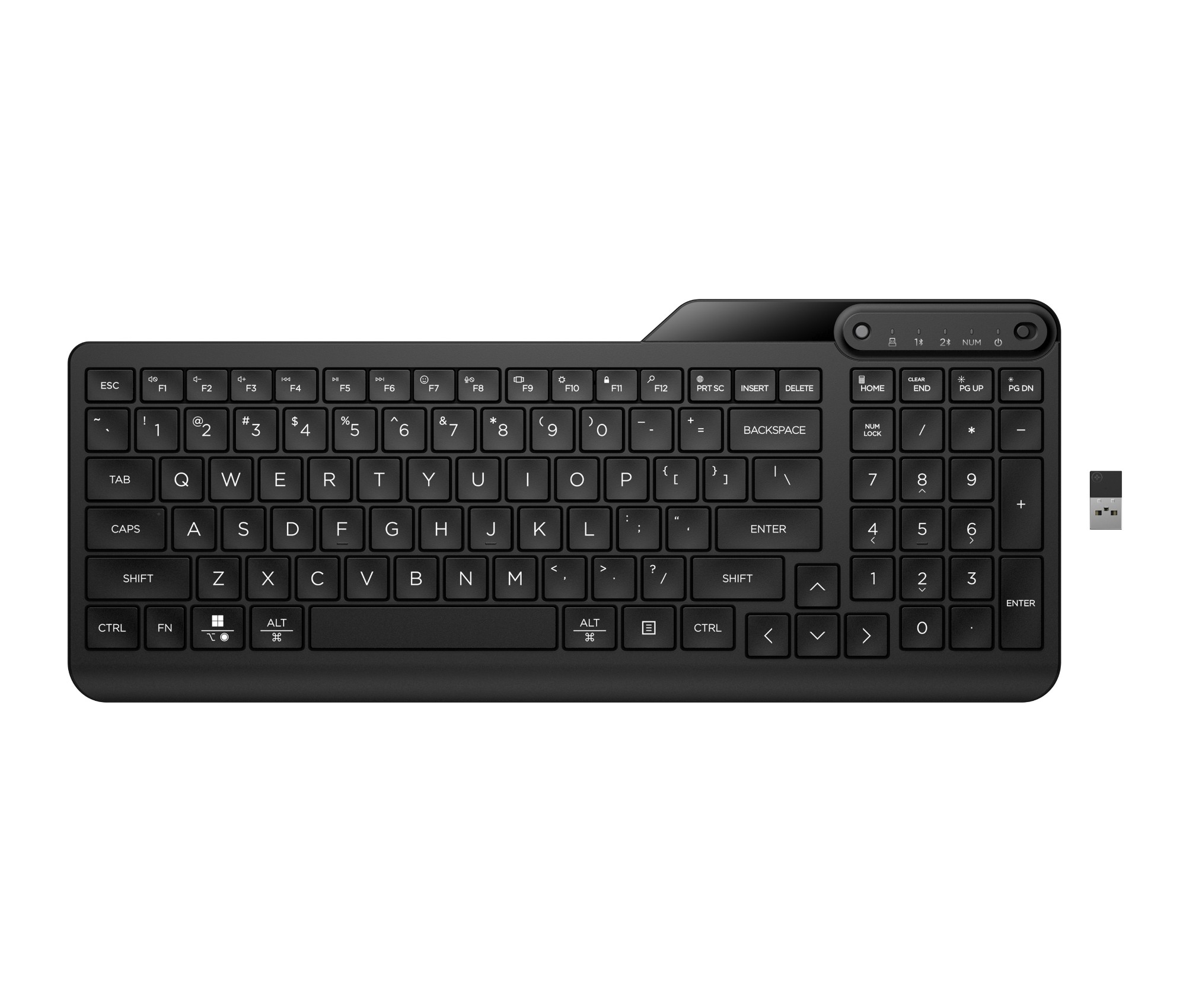
Keyboards are essential for the use of computers. Not only do they provide you with a means of writing but also executing commands, keeping you efficiently productive.  Enhance your input speed, allowing you to keep on top of your tasks and boost your productivity. If you require extra comfort, our ergonomic styles significantly reduce strain, improving your typing efficiency when inputting high levels of data. In terms of educational use, our keyboards will vastly enhance typing development.

Discover our selection of computer mice for a full set-up.
352 products found
Sort by
HP 475 Dual-Mode Wireless Keyboard
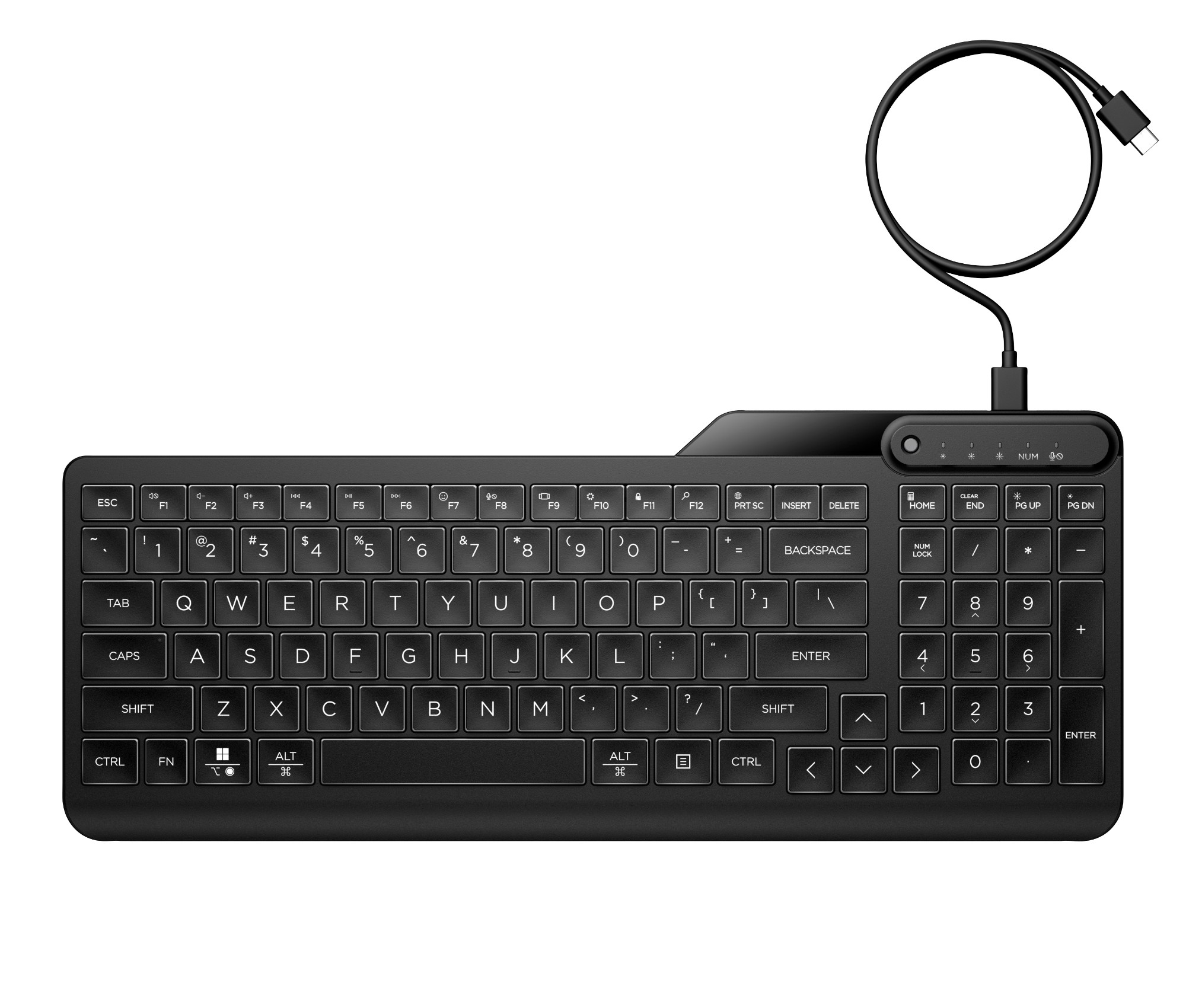
HP 405 Multi-Device Backlit Wired Keyboard
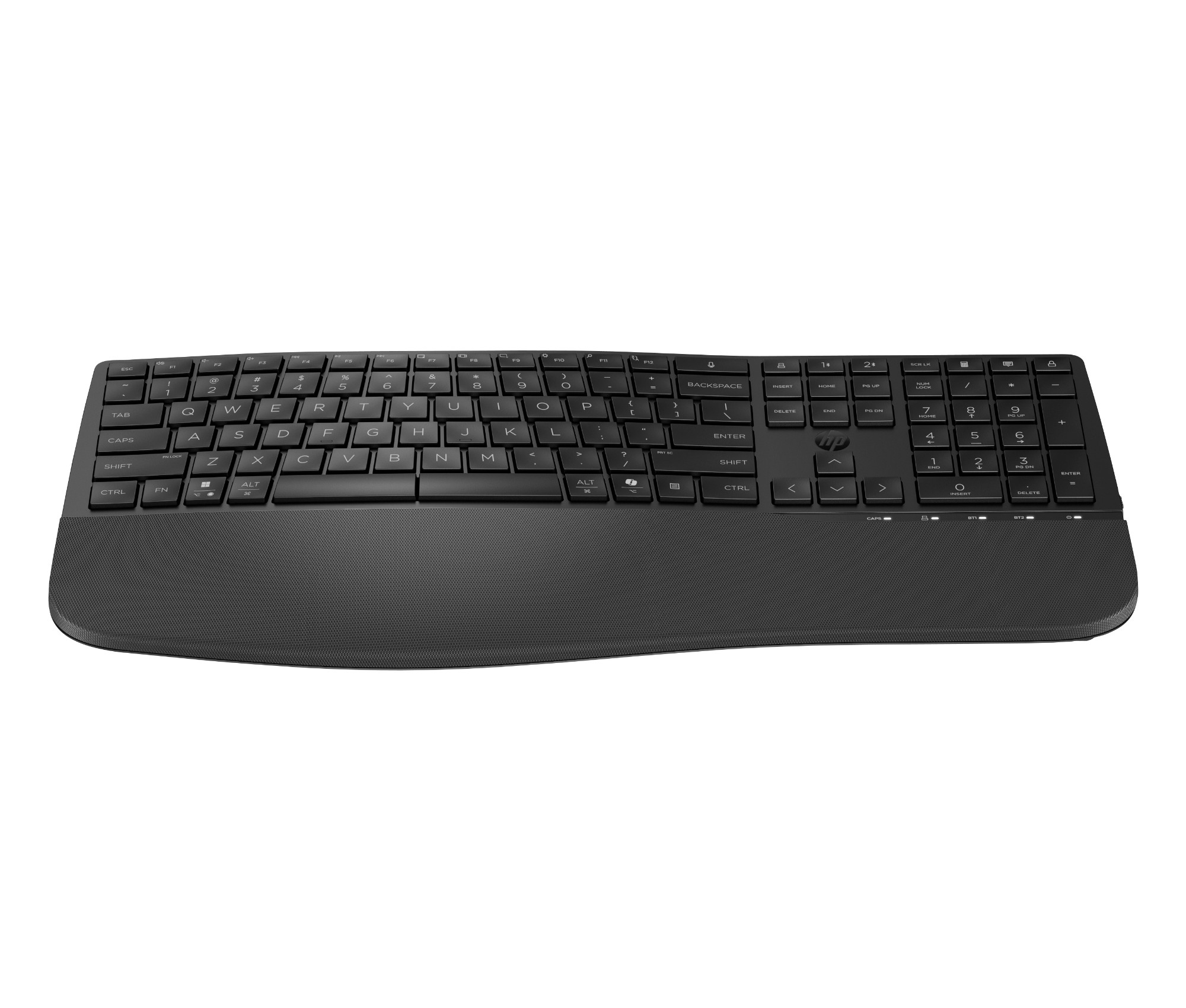
HP 225 Wireless Keyboard
HP 685 - Keyboard and mouse set - dual mode, 3-zone layout, multi-device, 23 programmable keys, OS Auto-Detection, low profile key travel - full size - Bluetooth, 2.4 GHz - UK - black - Smart Buy
HP 685 - Keyboard - dual mode, 3-zone layout, multi-device, 23 programmable keys, OS Auto-Detection, low profile key travel - 100% - full size - wireless - 2.4 GHz - UK - black - promo
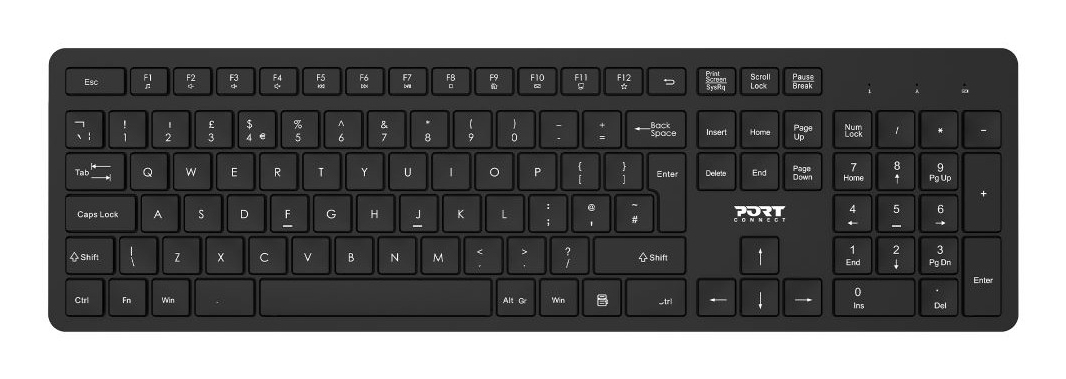
Port Designs 900904-UK keyboard QWERTY UK English Black
ASUS TUF Gaming K1 RGB keyboard USB Black
ASUS ROG Azoth keyboard Gaming USB + RF Wireless + Bluetooth White
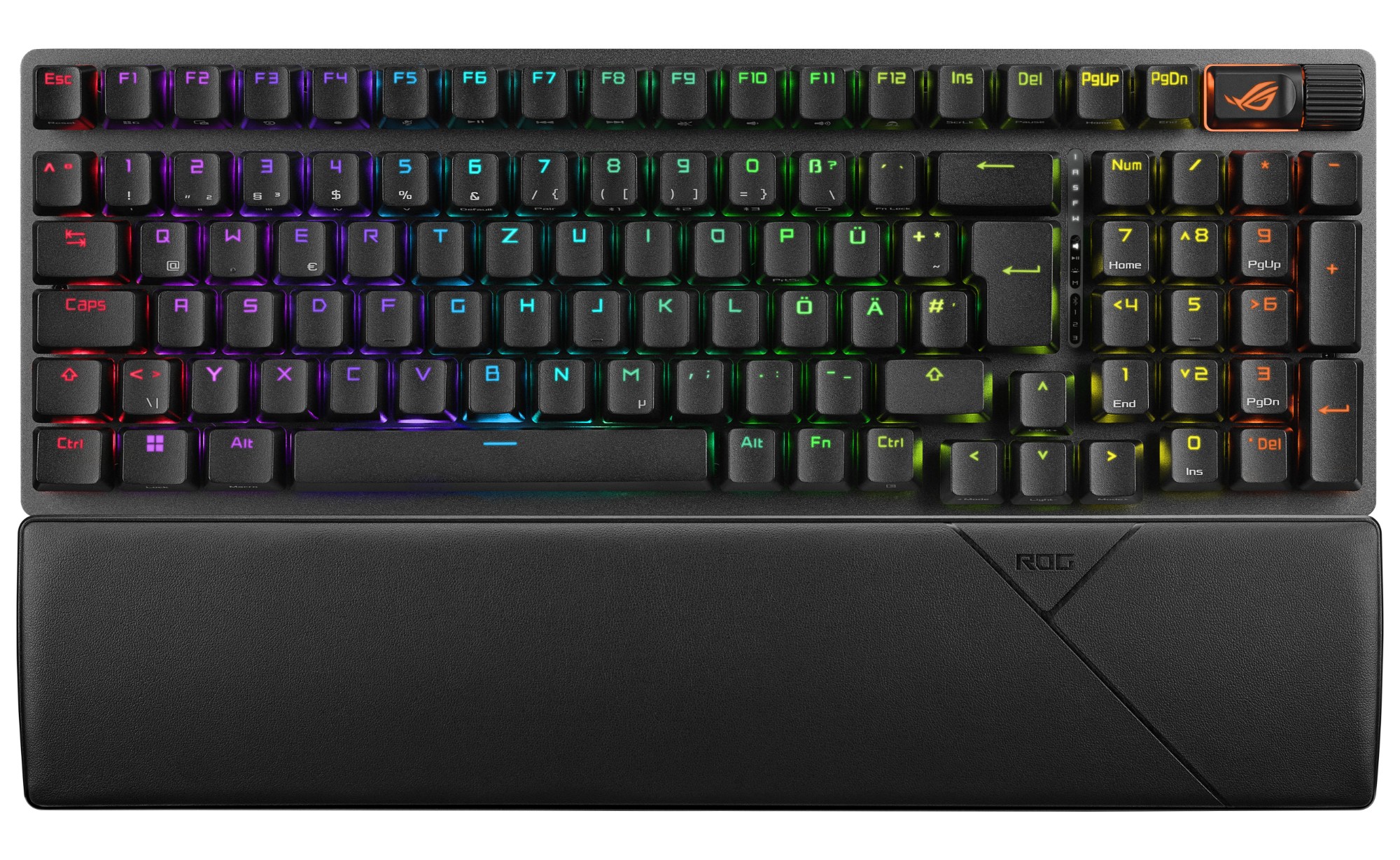
ASUS ROG Strix Scope II 96 Wireless keyboard Gaming USB + RF Wireless + Bluetooth QWERTY UK English Black
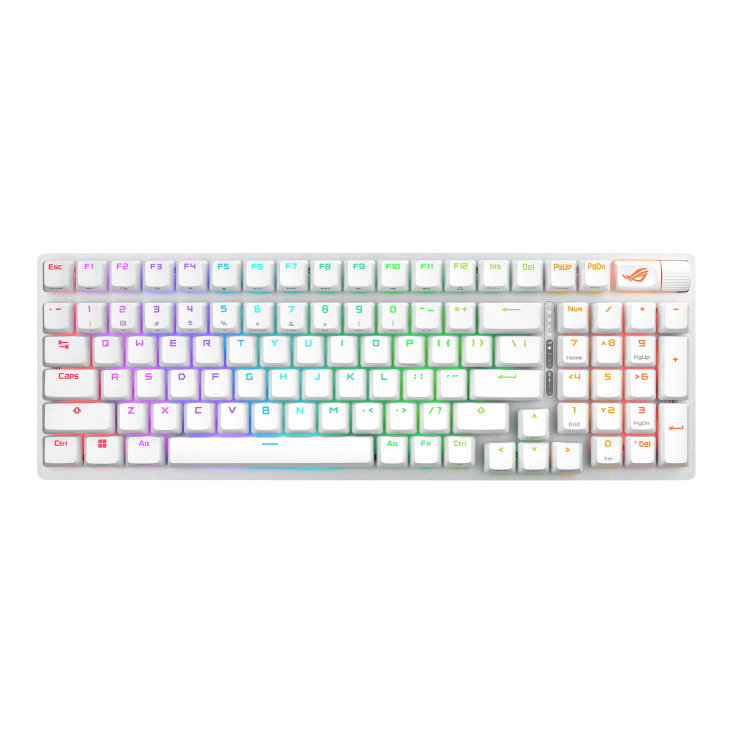
ASUS ROG Strix Scope II 96 Wireless keyboard Gaming USB + RF Wireless + Bluetooth White
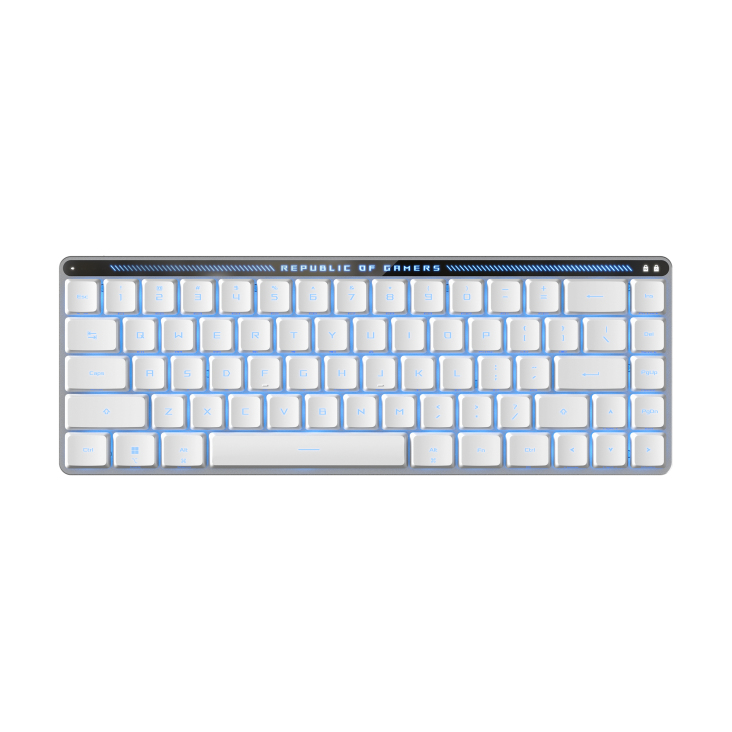
ASUS ROG Falchion RX Low Profile keyboard Mouse included Gaming USB + RF Wireless + Bluetooth White
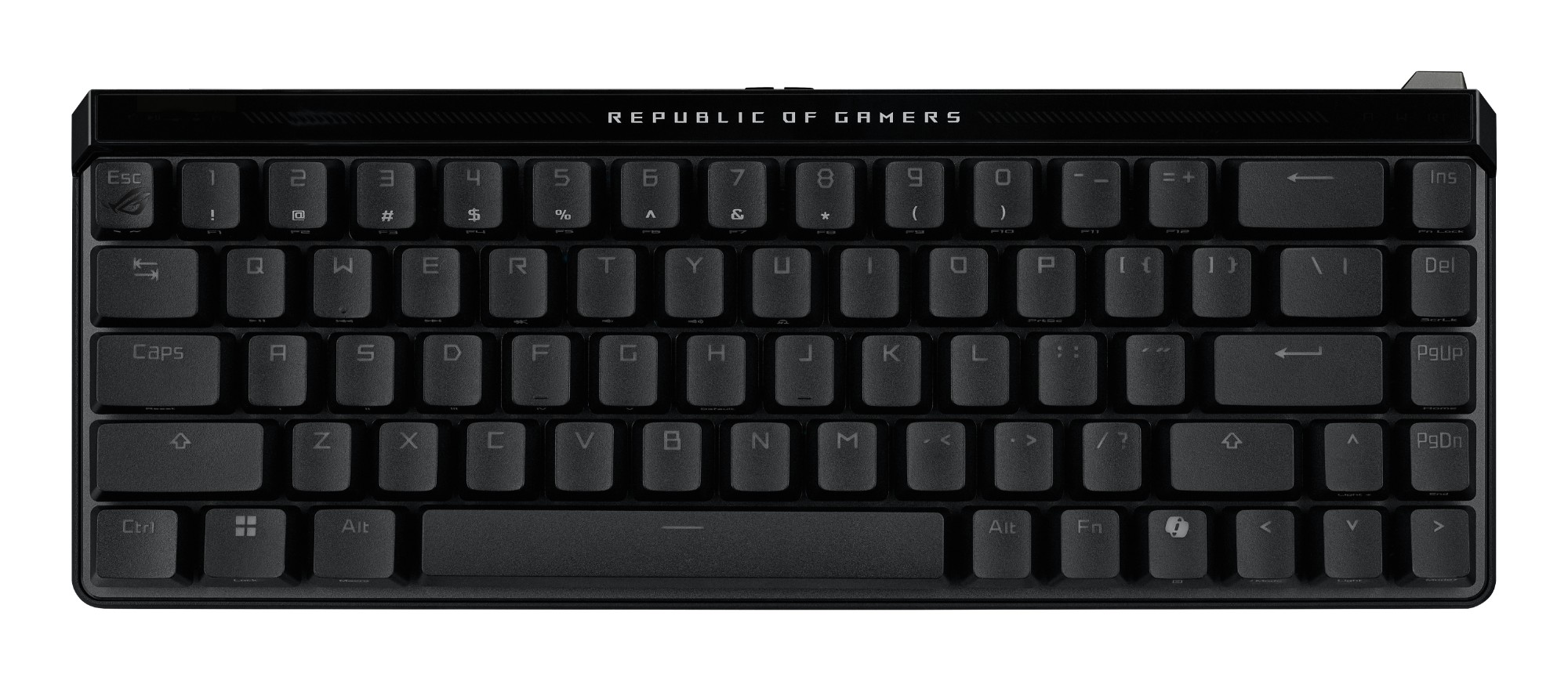
ASUS ROG Falchion Ace HFX keyboard Gaming USB Black
Loading more
Total 352 products

How do you type on a keyboard?

To type on a keyboard, you’ll want to start by placing your fingers on the home row keys which are A, S, D, F for the left hand and J, K, L for the right hand. Usually, the thumbs will take control of the spacebar.

How do you make euro sign on a keyboard?

Unfortunately, you cannot make a euro sign on a standard Microsoft keyboard. Instead, head to the ‘insert’ tab at the top of the page and click ‘symbols’ to find a euro sign.

How do you undo on a keyboard?

To undo an action using your keyboard, all you need to do is press ‘ctrl + Z’.

SEARCH ×

Search