
Computer Mice
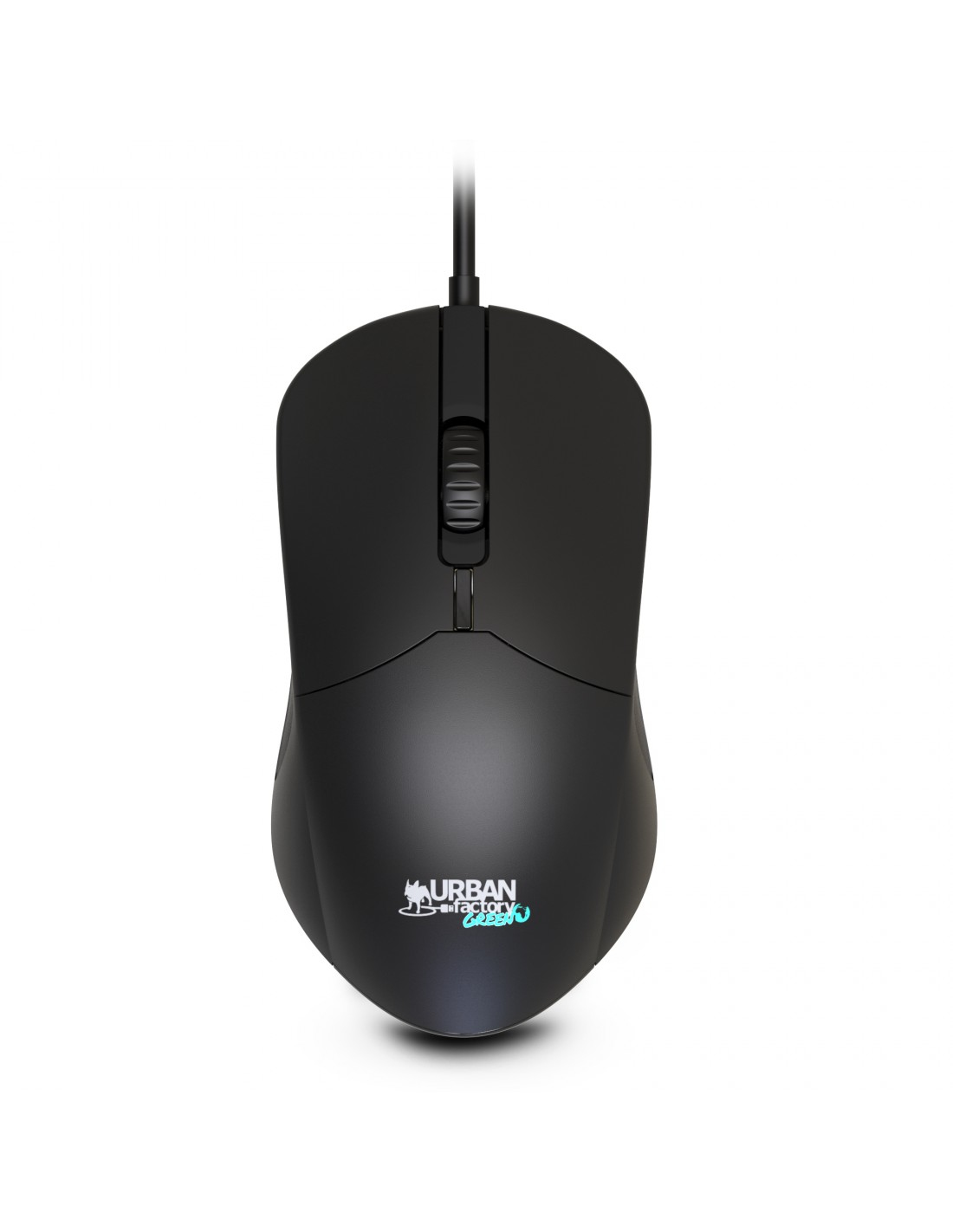
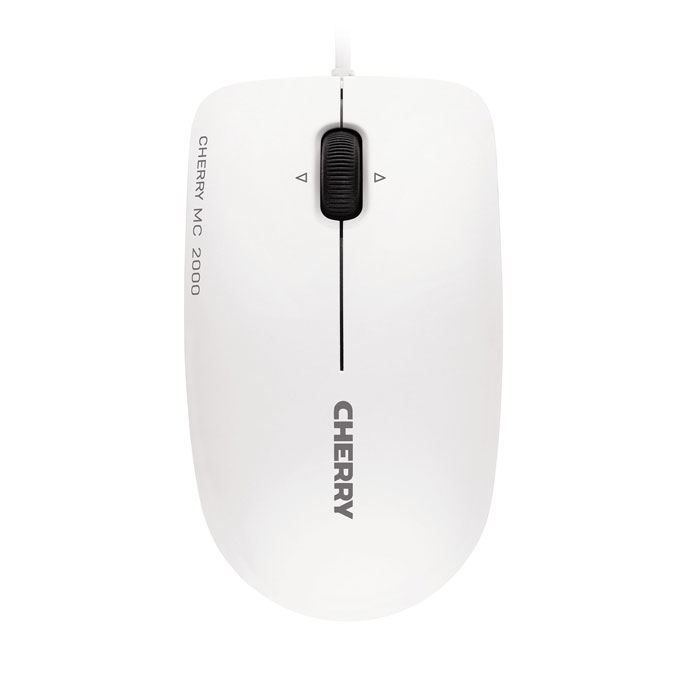
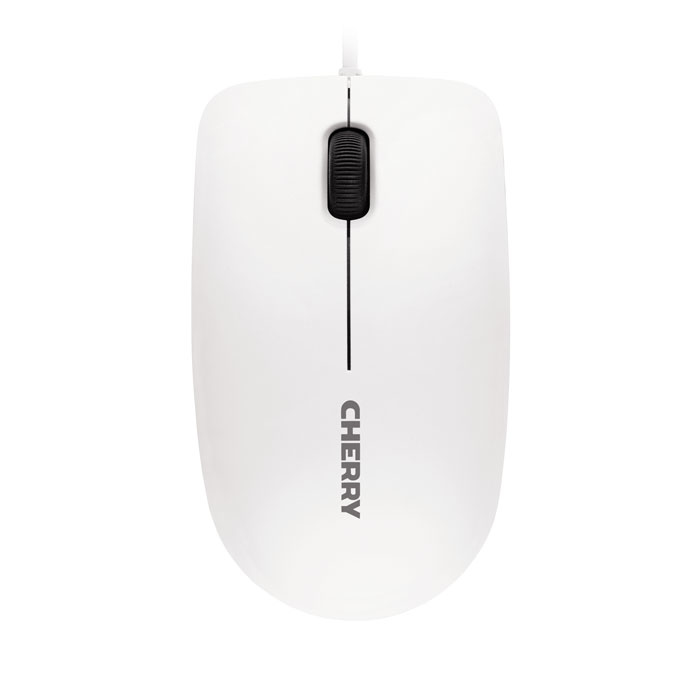
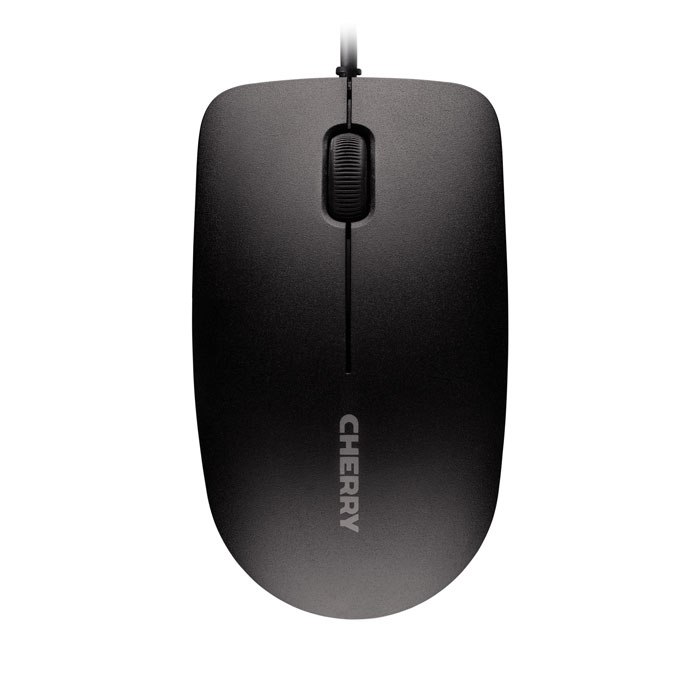
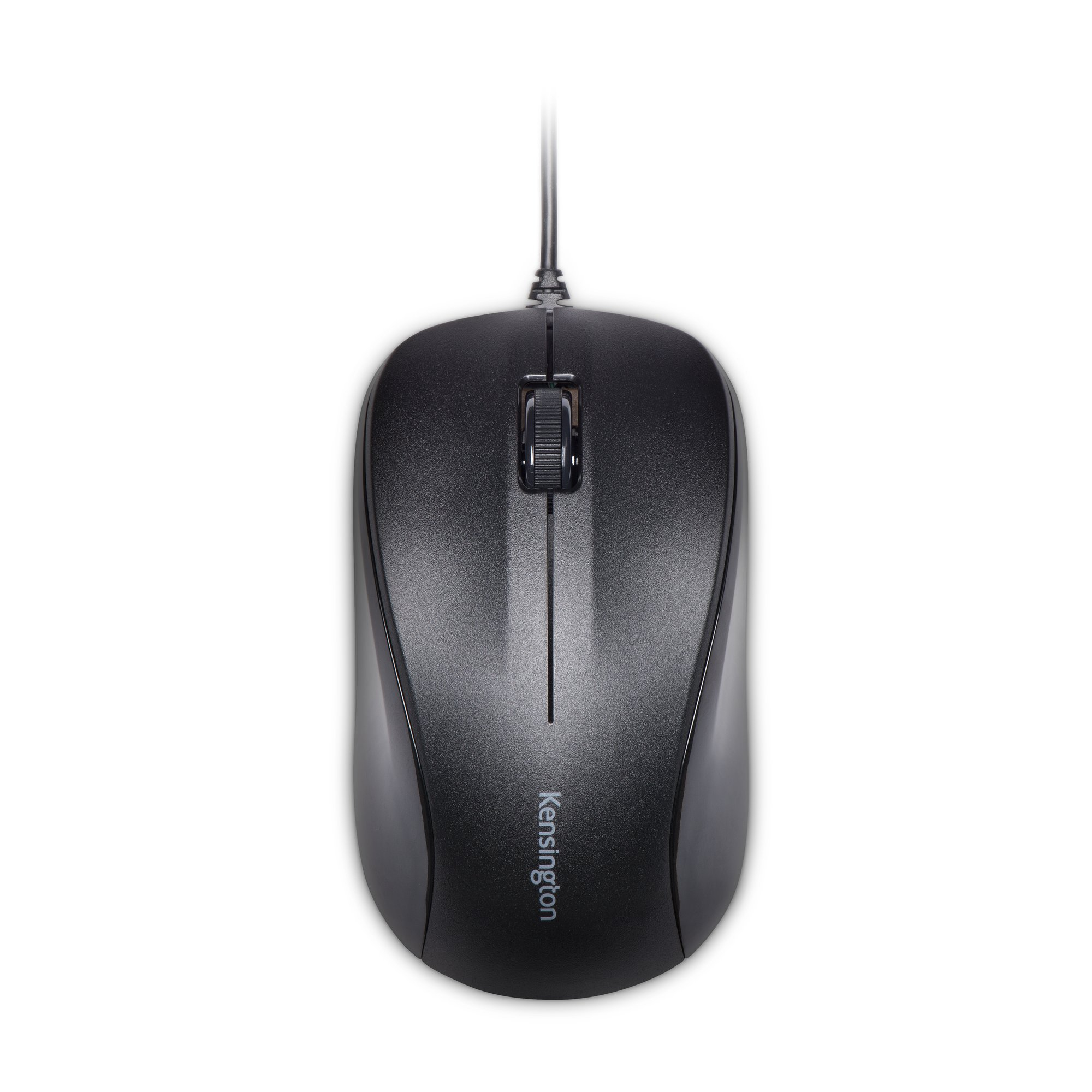
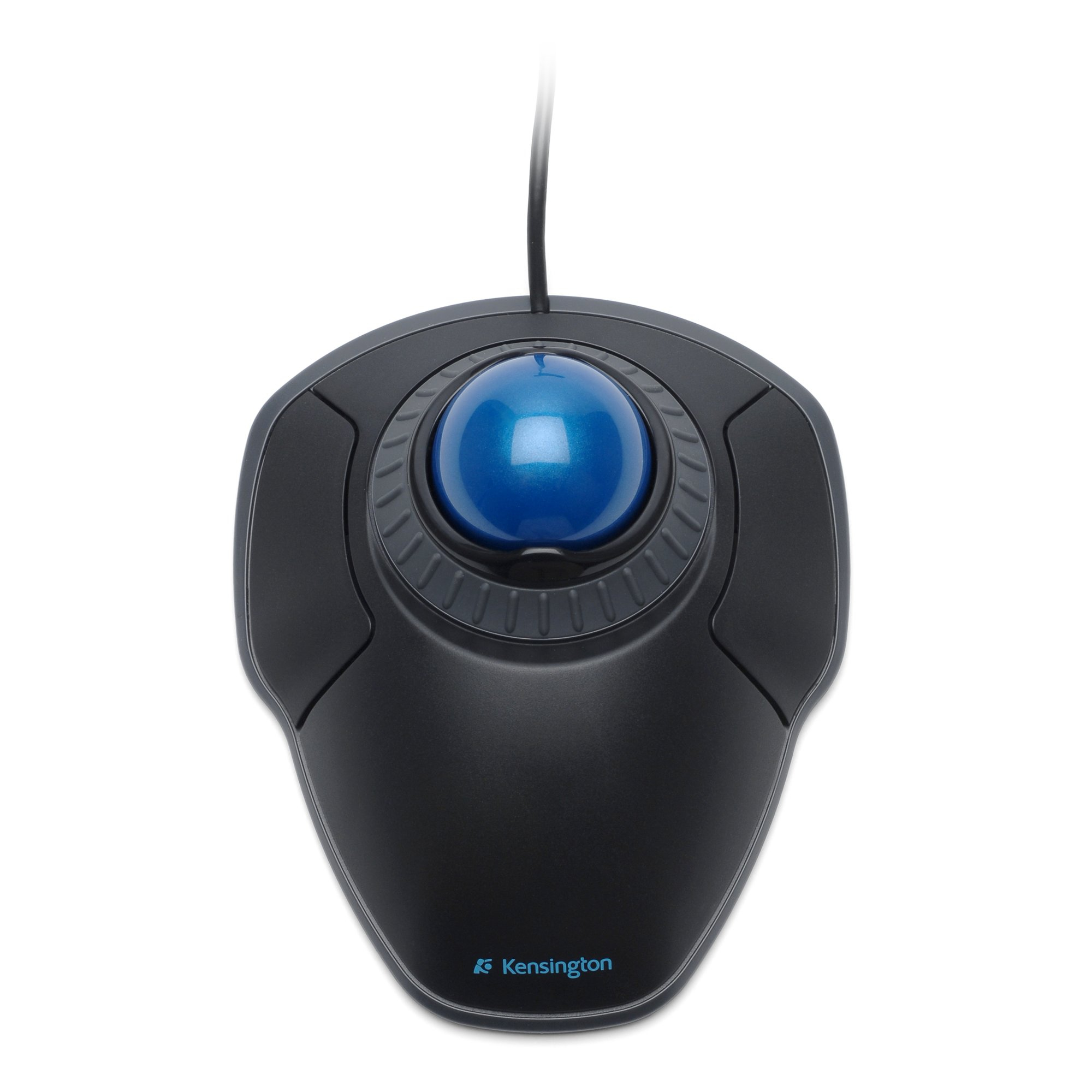
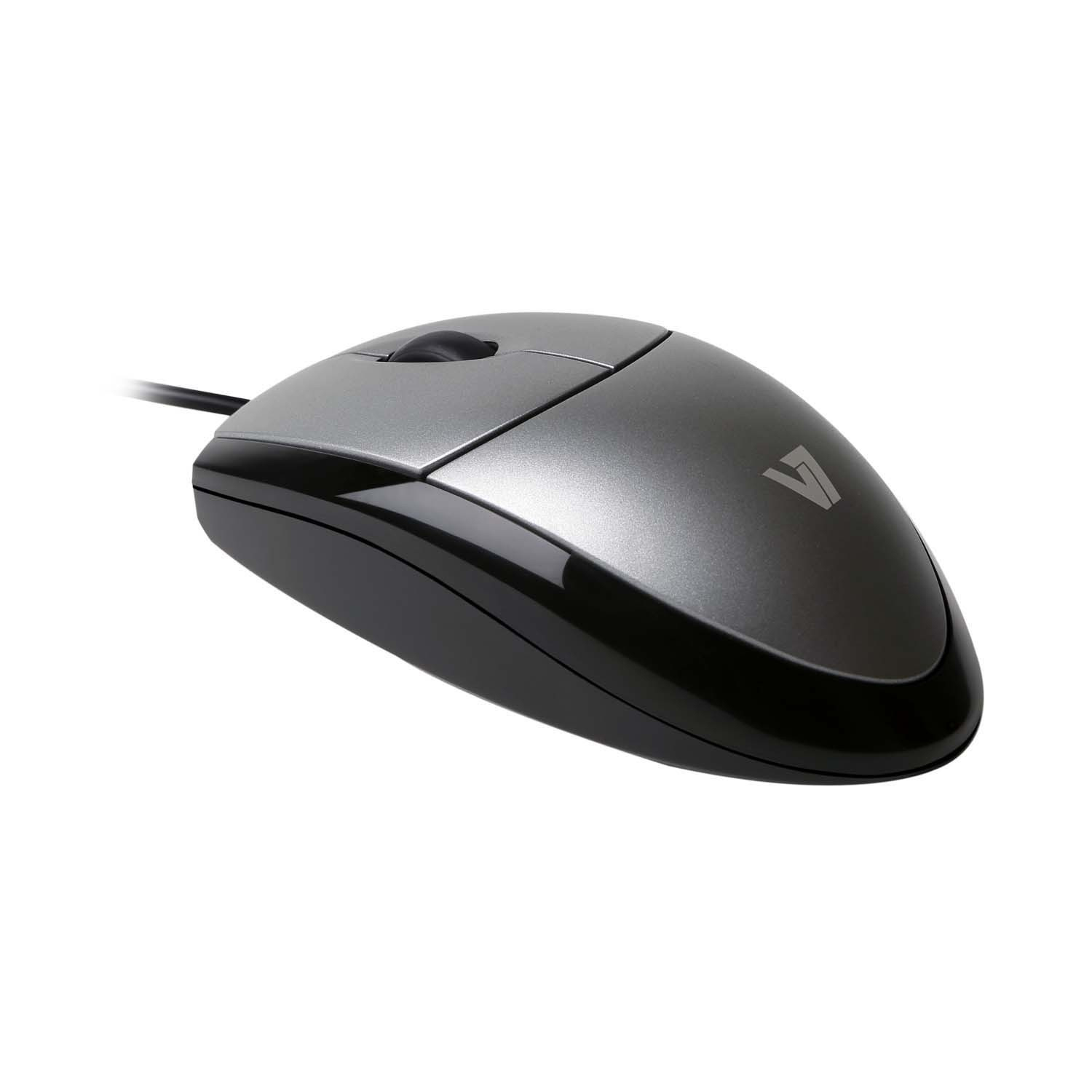
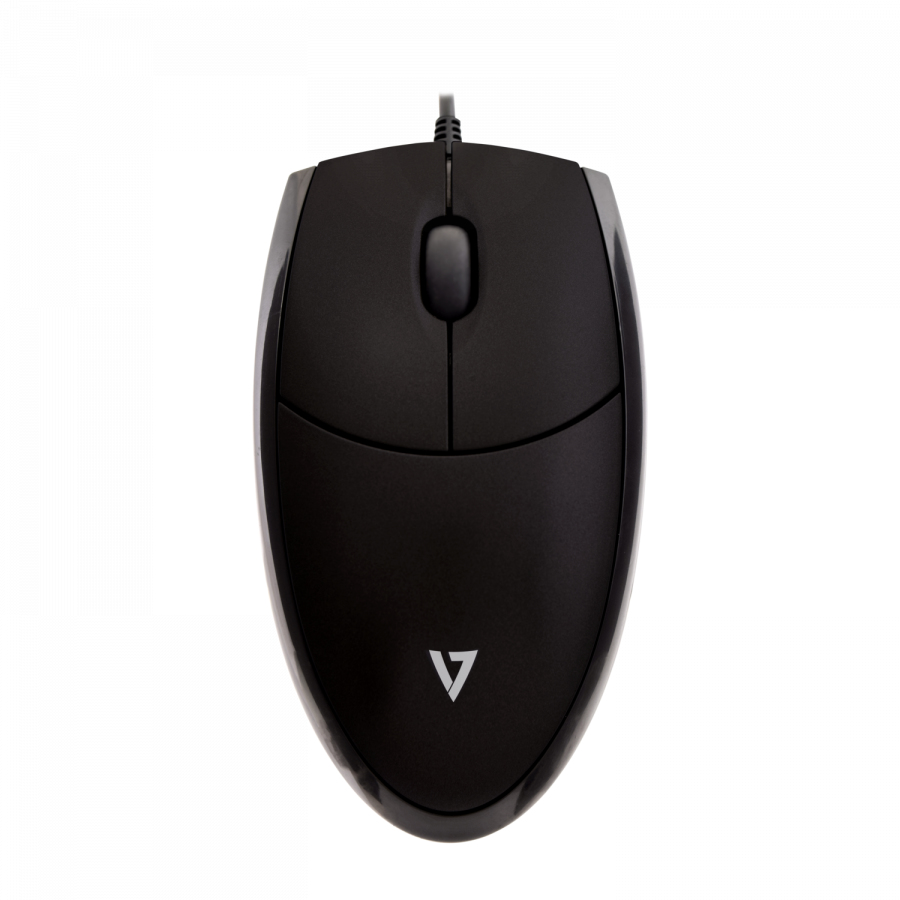
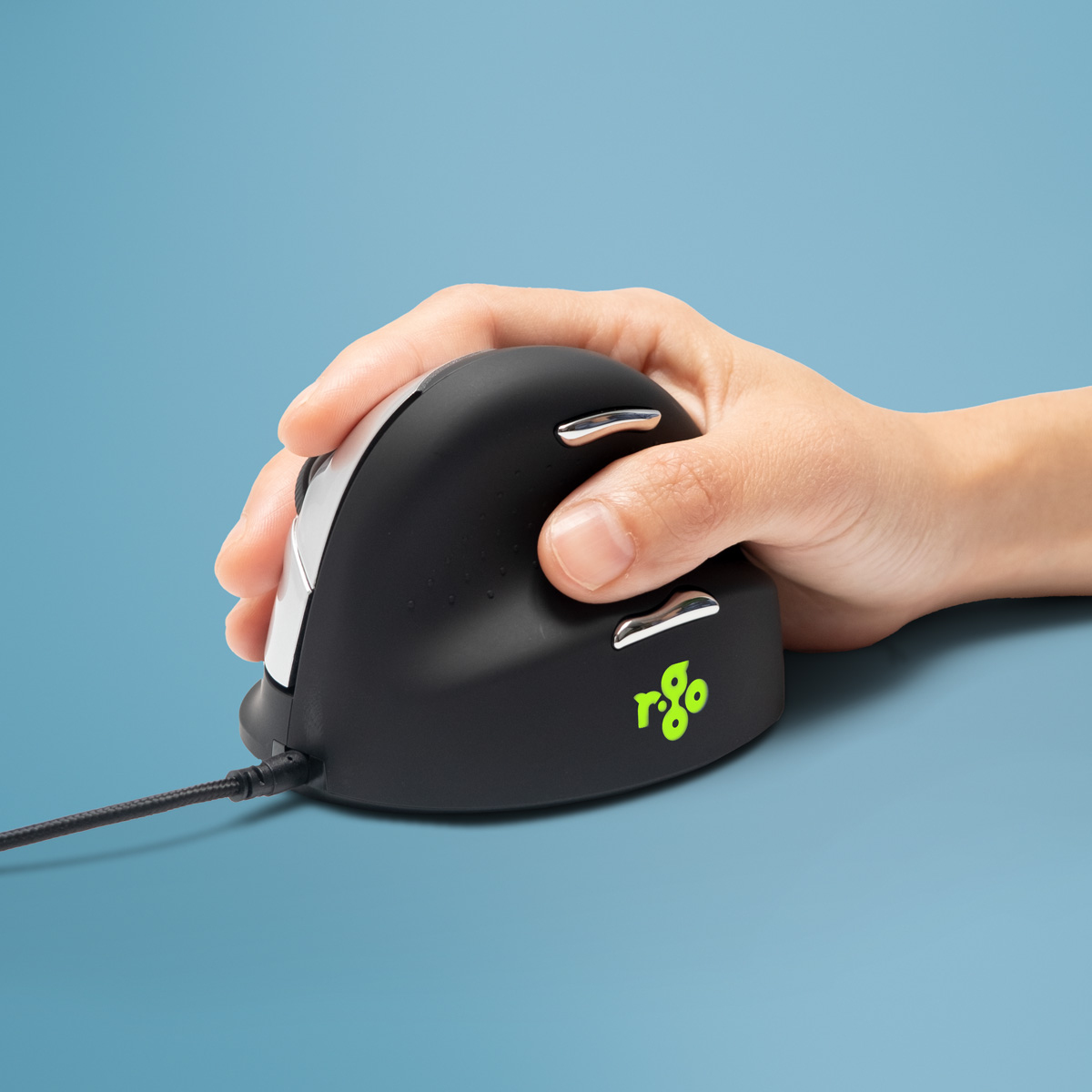
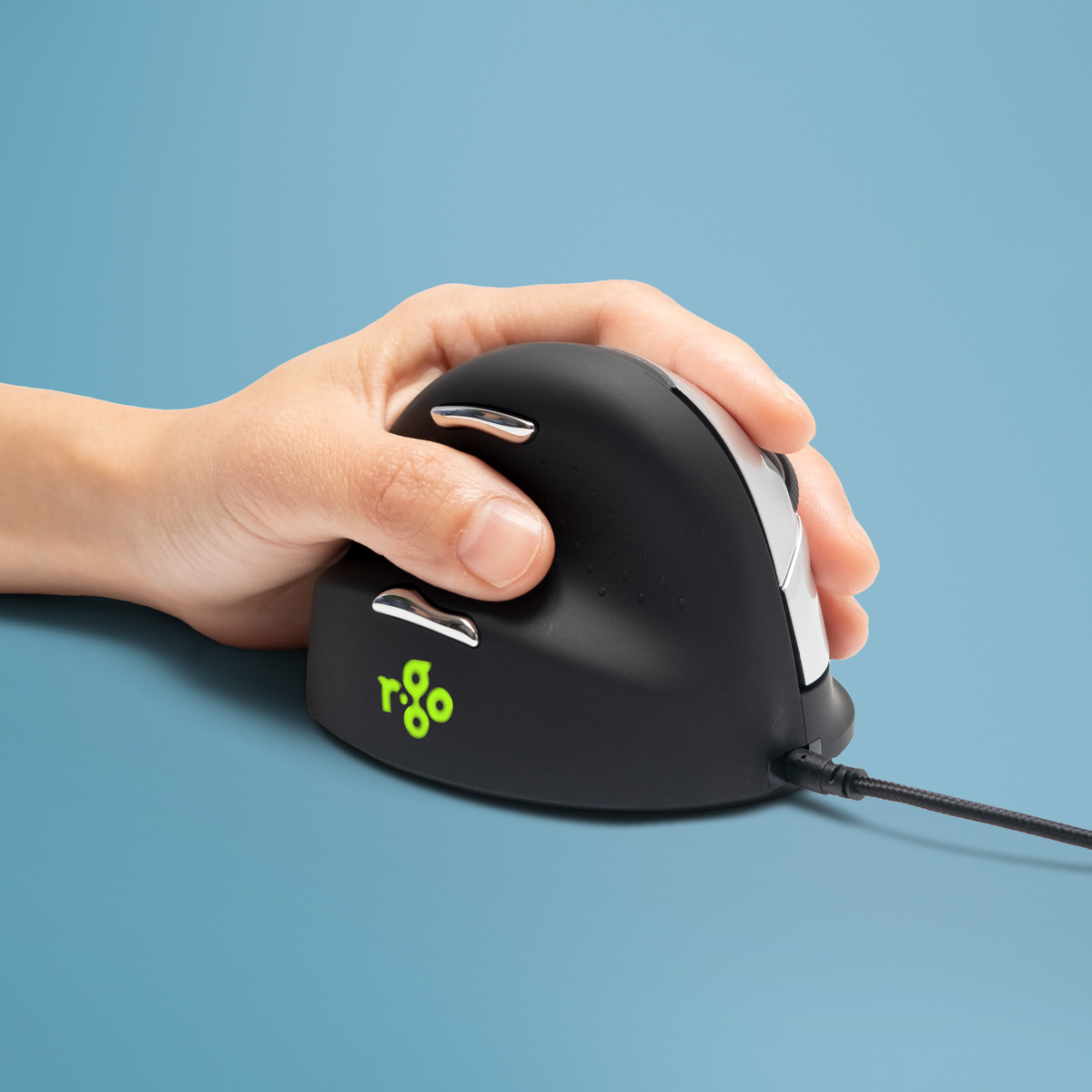
Bring efficiency and precision to the forefront with our collection of intuitive computer mice. Our easy-to-use computer mice combine precision with efficiency as you glide over one of our complimentary mouse mats. Whether you opt for our ergonomic designs to minimise strain or a wireless option for easy transportation, computer mice are indispensable when completing complex tasks with simple movements. Experience maximum comfort and control, especially in combination with our computer keyboards.




How do you type on a keyboard?
To type on a keyboard, you’ll want to start by placing your fingers on the home row keys which are A, S, D, F for the left hand and J, K, L for the right hand. Usually, the thumbs will then take control of the spacebar.
How do you make euro sign on a keyboard?
Unfortunately, you cannot make a euro sign on a standard Microsoft keyboard. Instead, head to the ‘insert’ tab at the top of the page and click ‘symbols’ to find a euro sign.
How do you ‘undo’ on a keyboard?
To undo an action using your keyboard, all you need to do is press ‘ctrl + V’.
